STEP 1
GET THE ELSWORD DOWNLOADER
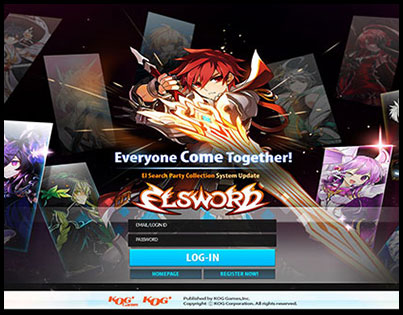
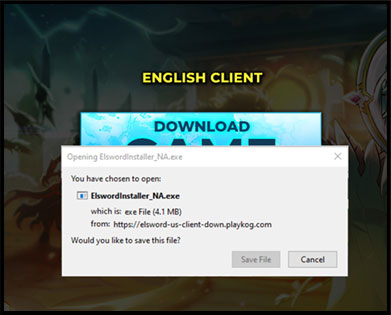
Go to Download Section and click Download Game button to save the file. Click the file to “Run” and start downloading the game client using the Elsword Game Installer.
STEP 2
COMPLETE THE DOWNLOAD
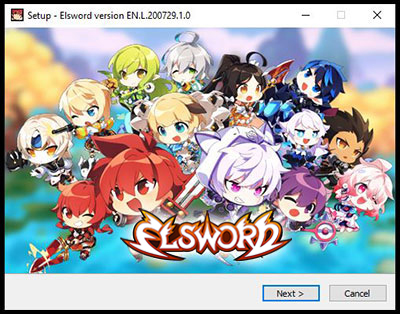
Once the downloader completes downloading Elsword, click ‘Open.’ This will automatically start the installation process.
STEP 3
CONFIRM THE FOLDER DESTINATION
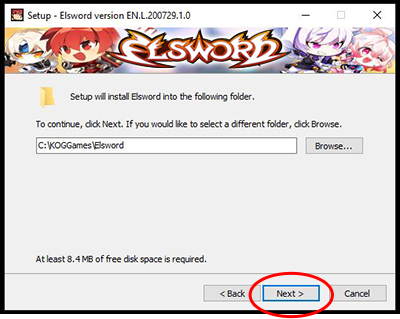
Confirm the folder destination where Elsword should be installed. Click ‘Next’ to continue.
STEP 4
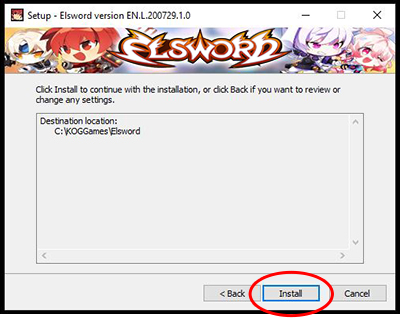
INSTALL THE GAME
Click ‘Install’ to begin installation.
STEP 5
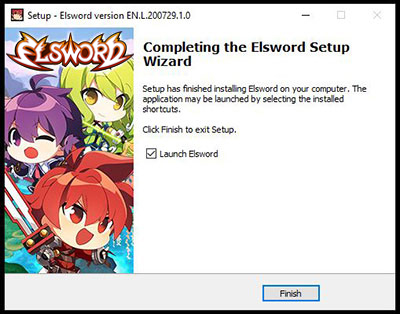
FINISH INSTALLING THE GAME
Press ‘Finish’ when the game has been fully installed.
STEP 6
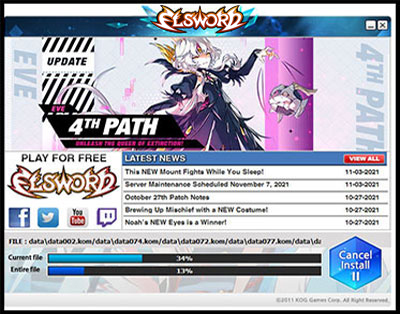
ELSWORD LAUNCHER PATCH
After you click ‘Finish’ you will be redirected to Elsword Launcher to Patch the Game
STEP 7
LAUNCH THE GAME
Log in to start the game.